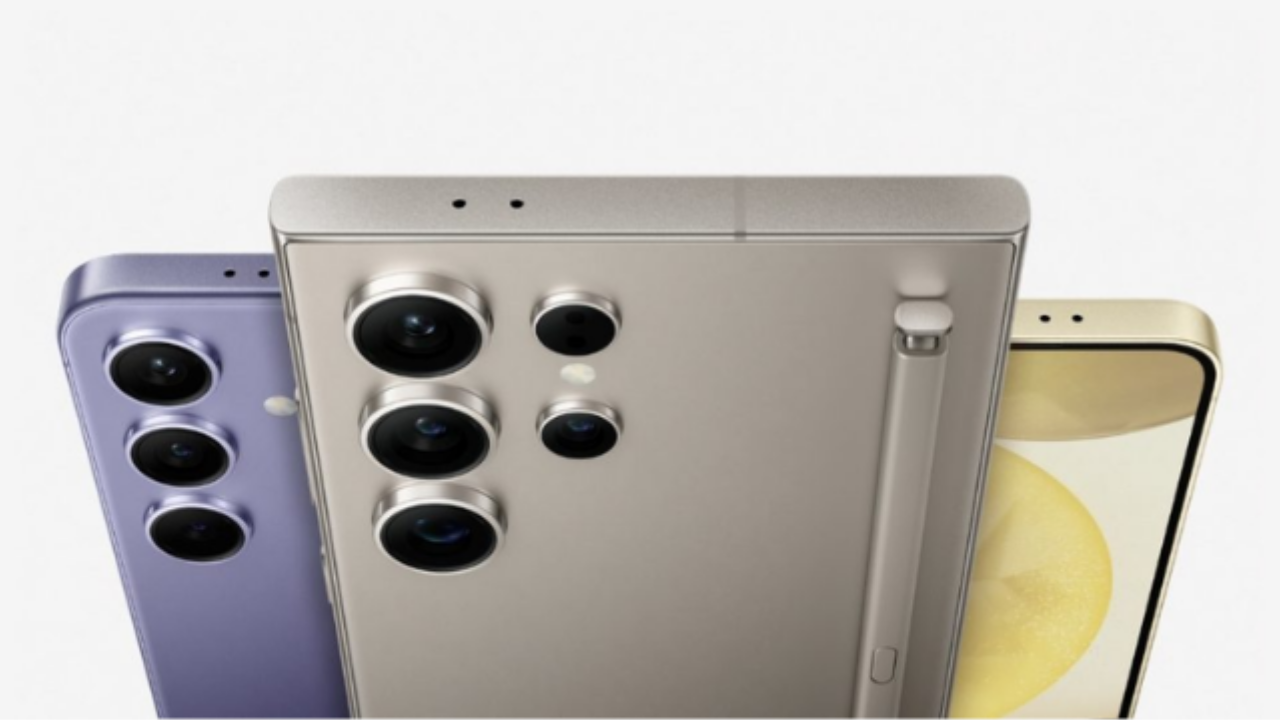
If you’re a Samsung Galaxy phone user, I’m going to share some very useful tips for you guys which will be really helpful in your day-to-day life.
Now, let’s dive right into the features.
1. Turn Off Your Phone Using Bixby
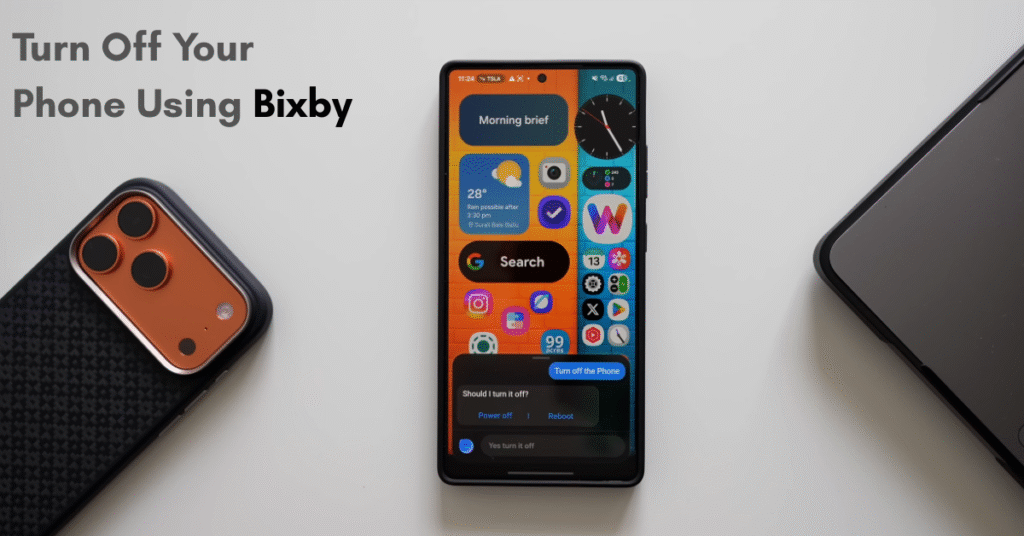
To turn off the phone, we usually press and hold the side key and the volume down key to get into the power-off menu and then tap on Power Off.
Or we can go to the Quick Panel and tap on the Power Off button, and then tap on Power Off again.
But did you know you can turn off your phone without even touching the buttons?
Yes, that’s possible on your Galaxy phone. All you need to do is just tell Bixby to turn off the phone.
Example:
“Hey Bixby, turn off the phone.”
Bixby will respond
“Yes, turn it off.”
And just like that, the phone turns off!
You can even reboot your phone the same way without juggling the buttons or going through the quick panel.
That’s our first hidden feature.
2. Hidden Settings in the Brightness Bar
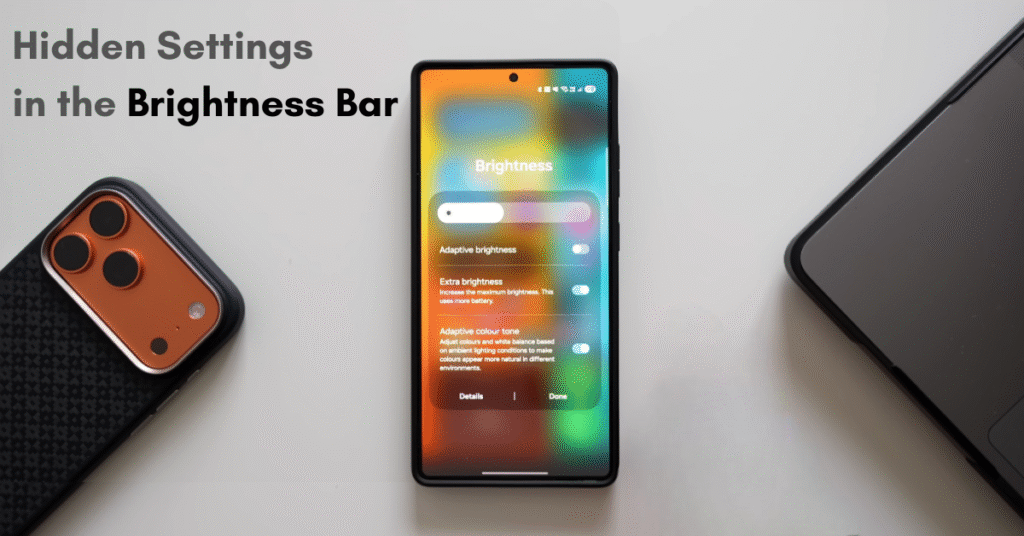
Now let’s go to the Quick Panel. Did you know there are some settings hidden within this brightness bar?
Usually, we use this slider to increase or decrease the brightness. Most of us have adaptive brightness turned on.
But if you’re using your phone outdoors, you should disable adaptive brightness to get that extra brightness your screen is capable of.
This will increase the maximum brightness (though it uses more battery). If battery life isn’t a concern, you can enable this toggle whenever you’re working outdoors, under sunlight, or in bright conditions.
You’ll also notice the option “Adapt to Color Tone.”
This adjusts color and white balance based on ambient lighting to make colors appear more natural in different environments.
If you prefer consistent color tones, you can disable this option to enjoy Samsung’s vivid, beautiful screen colors.
These settings are hidden within your brightness bar just press and hold on it to access them.
3. Mic Modes and Full Spectrum on WhatsApp Calls
We’re all familiar with Focus Mode, which can be accessed during calls to switch between standard and voice focus modes.
But here’s something interesting: when you make a WhatsApp call, a new option appears.
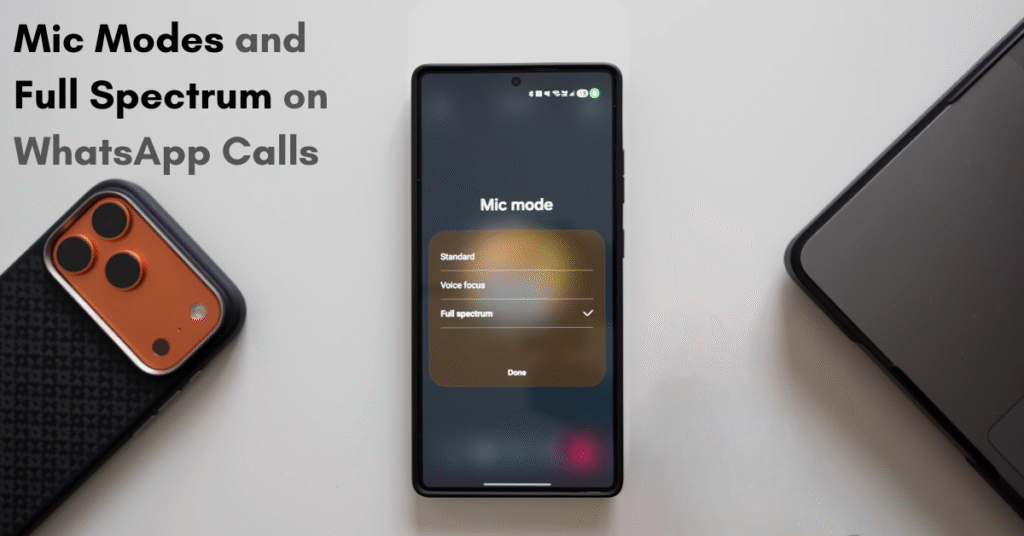
Let’s say you make a call on WhatsApp and go to the Quick Panel. You’ll see Mic Mode there.
Tap on it, and you’ll notice three options:
- Standard
- Voice Focus
- Full Spectrum
When you’re on a regular call, you only get the first two. But during a WhatsApp call, the Full Spectrum mode becomes available.
By default, Standard and Voice Focus cut out background noise.
However, if you want the other person to hear your surroundings, maybe you’re at a party or in a busy place, switch to Full Spectrum.
This lets your caller hear everything happening in your background traffic, music, or conversations loud and clear.
This feature works on WhatsApp and possibly other third-party calling apps too.
4. Live Translate During Calls
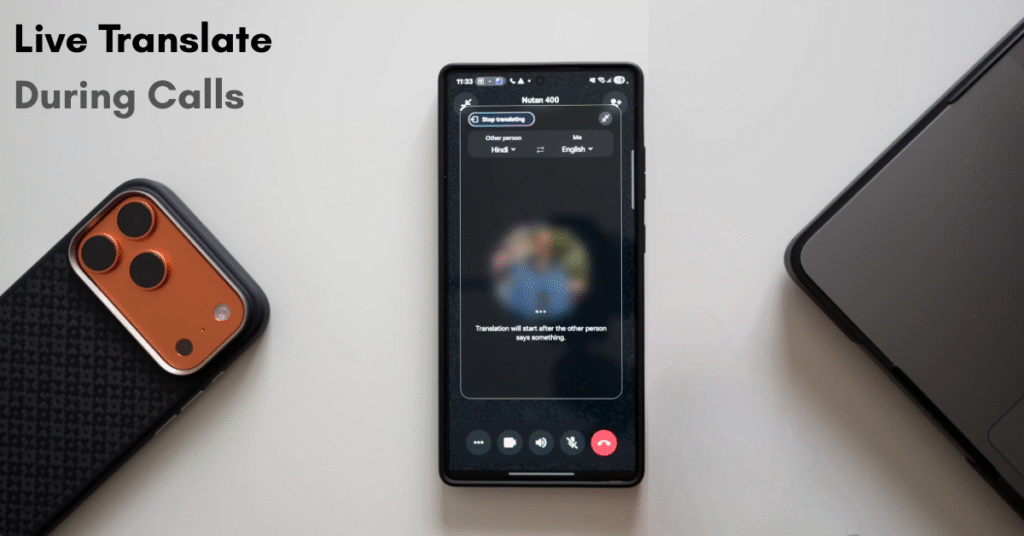
Next up is Live Translate, an incredibly useful feature when talking to someone in another language.
This pops up when you’re making a call on WhatsApp, Google Meet, or similar apps.
When you tap on Live Translate, whatever you say will be automatically translated into the other person’s language in real-time.
For instance, if you’re speaking English, and the other person speaks Hindi, your words will appear as translated text on their side.
You can adjust the language settings before starting the call.
The translation window can also be expanded or moved around for convenience.
When you’re done, simply close or minimize it.
This is a super handy feature if you’re chatting with someone who doesn’t understand your language.
Samsung has really nailed it with this one!
5. Back Swipe Preview (One UI 8 Exclusive)
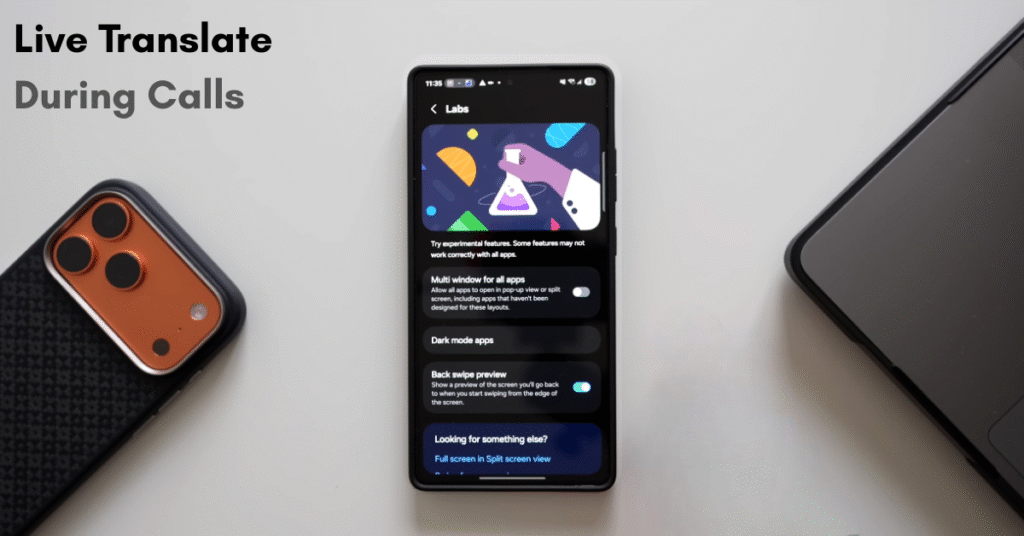
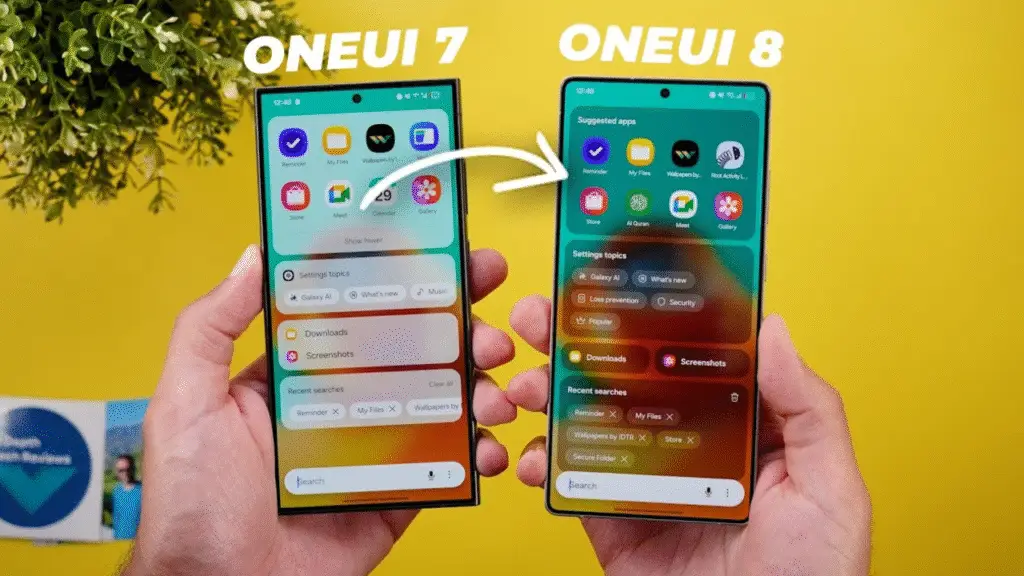
In One UI 8, Samsung added a cool feature that used to be hidden inside Developer Options on One UI 7 the Back Gesture Animation, also known as Back Swipe Preview.
You can find it under:
Settings → Advanced Features → Labs → Back Swipe Preview
Note: This feature may not be available on all devices. It’s confirmed to work on the S25 series, but we’re unsure about the S24, S23, A, F, and M series.
Once you enable it, you’ll see a preview of the previous menu when you swipe back a subtle animation that makes the navigation smoother and visually pleasing.
It may not be useful for everyone, but it’s quite satisfying to see.
Do note that this effect currently doesn’t work in all apps only in Settings and a few system menus.
6. Organize Your Home Screen Efficiently
Here’s the last tip and it’s a big one for those who like to keep things tidy.
If your home screen is cluttered with apps scattered everywhere, dragging each one individually can be a pain.
Instead, here’s a hidden trick:
- Press and hold on an app.
- Tap on Select.
- Select multiple apps at once.
- Swipe to the page where you want to place them.
- Hold on an empty space and drop them there.
All selected apps will move together and organize themselves neatly on the new page.
This is a hidden yet powerful feature that many Galaxy users miss out on.
Final Thoughts
These are some of the coolest hidden features of One UI 8.5 that can make your Samsung experience smoother and more efficient.Thanks for reading! Take care and stay safe.
Cheers. Bye-bye.
Read Also One UI 8.5 Update Is Here: Key Features Explained

M Adnan Akram is the founder and lead writer at Phoonomo, covering mobile technology with a primary focus on Apple and the broader smartphone industry, alongside emerging developments in AI. He follows product launches, spec leaks, and industry trends closely to keep readers informed with timely updates.
Discover more from Phoonomo
Subscribe to get the latest posts sent to your email.